In my earlier posts I’ve focused on scripts that grab slabs of Powershell output information about Resources to run differential checks against them for the most part in order to see what’s changed for documentation purposes or change control or have historical record of configuration changes for Audit trail and troubleshooting. I’ve now put together a short script using the “Get-AzLog” function to pull out specific activity logs from Azure to see into CRUD activity focusing as the Resource Group for the context. A specific set of fields is focused on for output data to give at bit of an at a glance view in basic CSV form.
Originally I tried Format-Table to nicely display data, however I decided to bind together data from two separate sets of data collections so that I could present the actual user name & IP Address of the person carrying out the action. The issue here was that this data is contained within one of the fields in the Get-AzLog output with it’s own set of keys and value pairs. In order to solve this I referenced a reddit post! https://www.reddit.com/r/PowerShell/comments/62gcdn/combining_two_ps_object_values/ I used the code in this post to merge my two sets of data together and the export-csv the data to a file, I wouldn’t expect the data volumes to be so large to exhaust memory but I imagine my script could be refined to process the data differently or I could simply drop the extract of username and IP Address considering I already have a “Caller” field with some data.
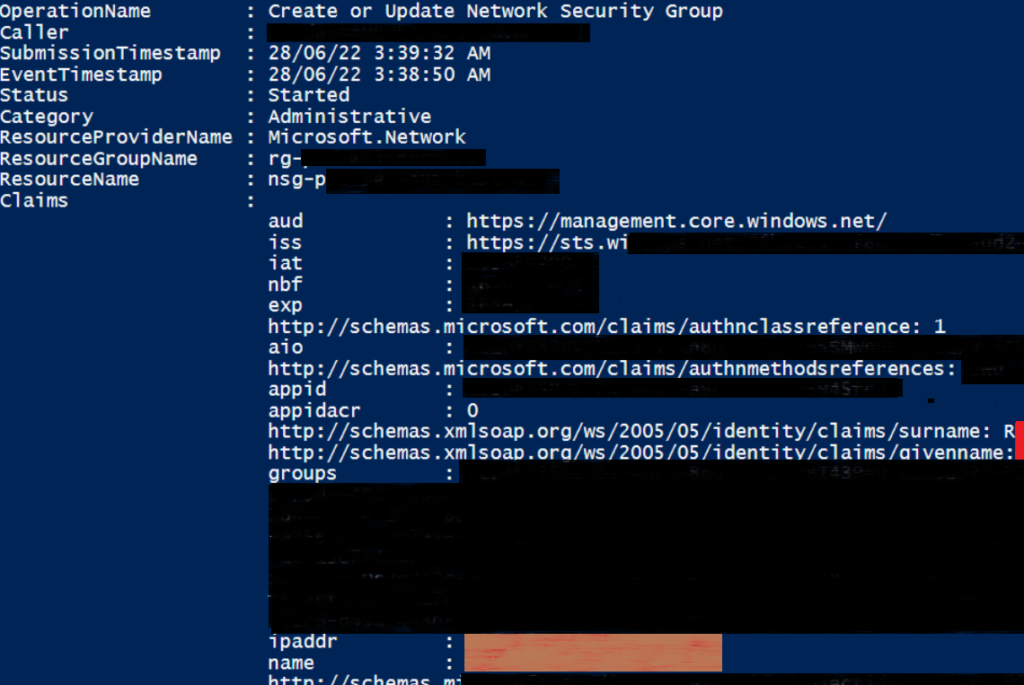
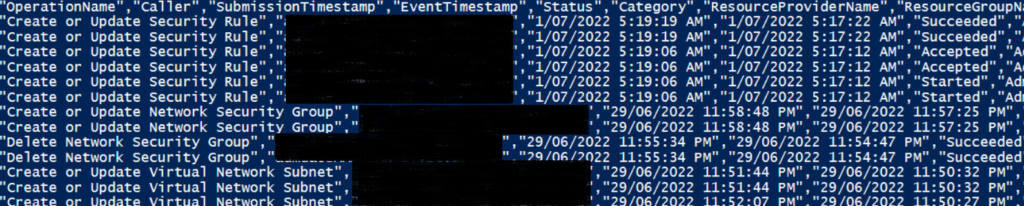
As a result of using separate sets of data, the Format-Table option was no longer an option as I had separate sets of data to list out. If desired the data can be listed in regular PS form but I chose CSV as a simple effective method to drop all the merged data out into to review in Excel for instance.
The main command that extracts the data is the command below, note the specific fields it grabs. It also extracts the resource name and the whole Claims field but only looks for Operations that contain specific keywords.
Get-AzLog -ResourceGroupName $rg -StartTime $rgdatestart -EndTime $rgdateend | select OperationName, Caller, SubmissionTimeStamp, EventTimeStamp, Status, Category, ResourceProviderName, ResourceGroupName, @{Name="ResourceName";Expression = {$_.ResourceId.tostring().substring($_.ResourceId.tostring().lastindexof('/')+1)}}, Claims | where-object {($_.OperationName -like "*del*") -or ($_.OperationName -like "*create*")}
- Get Date/Time and prepare variables to set scope of Log Search (how many days back from today)
- Specify the resource group name(s)
- Loop through each Resource Group
- Prepare Filename to write to (based on resource group name)
- Extract specific log data based on timeframe
- Loop through each log entry
- Extract User Name and IP Address from Claims ($user)
- Grab remaining desired fields ($logd)
- Merge both sets of $user & $logd together
- Output data to local CSV file
This script is a more basic version of another I’ve been working on which like my other scripts, automatically enumerates subscriptions and resources and works through them. Additional items that I’m also working on;
- Further narrow down the type of user or “thing” that did an activity resulting in log data, for instance, look for a specific user domain name which only caught particular actual human activity instead of system activity.
- Drop all data for multiple Resource Groups and specify the resource group as a column into a single CSV to pull out in Excel.
You’ll need to set the subscription you desired prior to execution and then set the number of days you want in the $tperiod variable, and set the Resource Group names desired in the $rga variable.
This was written and tested 7.2.5 with Az Module 8.0.0 on a Windows VMs. Some limited regression testing has been done by running this incidentally on earlier PS 5.