Archives

All posts by David Roitman

Whilst I’ve sighted scripts that exist for the ability to programatically create routes in Azure route tables, I crafted one with a specific potential use case in mind which contains a couple of controls around checking things first. The script could be developed into a lot more but I was focusing on creating UDRs into a route table based on Az BGP Community info or a static CIDR list. My ultimate actual aim use case is the automatic removal of stale routes, I haven’t yet modified the script to basically remove routes that are no longer published and thus have been removed from a source. This would essentially be a synchronisation of the route table to an external source.

If there are workloads or function apps reliant on connectivity directly to the Azure backbone or other uses cases whereby you need to bypass an NVA for processing throughput issues for instance then those routes will need to be added (and updating any NSG if required) to the route table likely as Next Hop Type “Internet”. The next hop can be customised as desired to point to an NVA if desired.

The script I’ve put together can utilise the Get-AzBgpServiceCommunity to grab all the CIDR prefixes for instance from “AzureActiveDirectory” or a region such as “AzureAustraliaSoutheast” and then automatically inject those routes directly into a route table. Otherwise, it can simply read in a text file with a list of CIDR addresses.

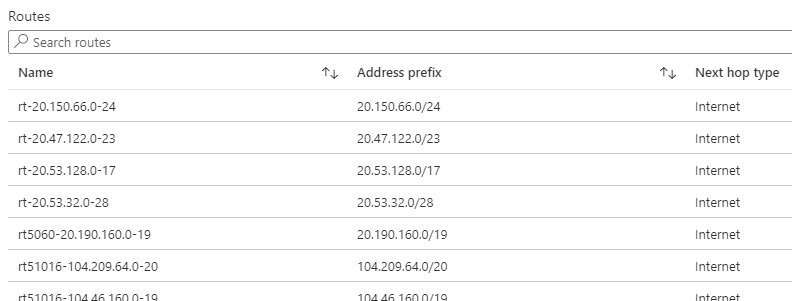
If the BGP fetch is used, then the script will formulate the route name to be “rt51016-104.209.64.0-20” for instance, otherwise the BGP Community number if omitted. You can see an easy example below of a couple of communities and some routes I injected from file.

There are a few sections where you can uncomment output detail lines and so forth. The script is set to use Azure BGP Community routes with “AzureActiveDirectory” left in the script by default.

  1. Fetch all details for desired BGP Community
  2. Fetch the actual BGP number details such as 12076:51016
  3. If the BGP prefix list is not empty, prepare the route name format, otherwise blank it.
  4. Fetch the desired route table content from Azure
  5. Extract the Address Prefixes specifically
  6. Foreach Cycle through the list;
    • If route found already, set a flag
    • If not found, add route to route table configuration variable
  7. Once the list has been cycled, commit the new routes to Azure.

Script located on Github at https://github.com/roity57/Azure-Gather-and-Compare-Info/blob/master/AzRouteTableUpdate.ps1

The script basically walks the existing route table to determine if the CIDR prefix already exists, this is slightly sped up by using the “break” command so the whole list is not wastefully walked through on every check cycle.

I had originally started assembling it as a function that could be called by supplying a single CIDR to the function at a time, but this turned out to execute extremely slowly taking around a second or more for each CIDR. The longest executing part is the actual “$rtable | Set-AzRouteTable | Out-Null” command at the very end.

Screen Capture script output (testrun updating a table that already had some Azure AD Routes present)

Tracking network changes & troubleshooting connectivity problems usually results in analysis of route tables and in Azure currently there are a few route table constructs (Gateway, Express Route, Subnet route tables, effective route table…). The route table potentially of most importance or interest is the effective route table on a NIC attached to a VM in Azure and knowing which subnet it’s attached to. Network Security Groups are just as important with regards to what traffic they allow in and out.

Below is a script that will cycle through ALL your network interfaces across all running VMs and fetch the effective route table and also the NSG if one is attached. It will output the route table and NSG in standard Powershell with some manipulation of route table data using Format-Table format into a file named as the NIC itself. A header is placed into the files to also confirm the NIC name and advise which VM and also subnet it’s attached to in the case of VMs & NVAs with multiple network interfaces.

This script uses a combined mixture of foreach loops with some manual generation & handling of arrays and is heavily reliant on output data from the Get-AzNetworkInterface command. The output in particular of this command needed some work to manipulate to drill down into sub property values of the VM Name and Subnet attached to the NIC, I sought advice from another blog: https://4sysops.com/archives/retrieve-azure-nic-properties-using-powershell/.

The Get-AzEffectiveNetworkSecurityGroup is used to get NSG information. I couldn’t find an immediate way to dynamically assess if an NSG would apply (command output only lists an NSG that is directly attached to the NIC as opposed to inherited from Subnet) to a NIC or not to this command is run regardless but if empty no data is saved to file.

I’ll probably turn this into a function at some time to automate looping through by being called from elsewhere, some brief overview of the script below:

  1. Setup file output environment and file names.
  2. Enumerate all NICs into an array by name and Resource Group
  3. Search for NICs and if found
    • Check for output file folder and create if required
    • Otherwise advise none found
  4. Prepare arrays for output file names and search pattern
  5. Cycle through all NICs via foreach loop
    • Get VM Name and Subnet NIC attached to
    • Check power state of VM and if running, get route table and run compare.
    • If there is an NSG attached, it will fetch that too.
  6. Run Comparison function

Some of the commands take a second or so to execute so the script will take time to cycle through, the slowest check is validating if the VM is running. Looks like I’ll have some more work to do to perhaps change the order of things to enumerate running VMs instead and then work on getting NIC details potentially!

The script is located at https://github.com/roity57/Azure-Gather-and-Compare-Info/blob/master/AzNICRouteTable.ps

(Updated 2/8/2020 – added NSG enumeration and all scripts now located at Github with version control)
It can be a little tedious having to use the GUI to fetch routing information and other details for Express Routes. I haven’t actually located a GUI function to revise the Virtual Network Gateway routes.

I’ve used the Get-AzResource command to dynamically ascertain whether or not there is a Virtual Network Gateway and/or Express Route Circuit. In order to review the route table of the Virtual Network Gateway I’ve used the Az module Get-AzVirtualNetworkGatewayLearnedRoute & Get-AzVirtualNetworkGatewayBGPPeerStatus commands. To gather Express Route details I used Get-AzExpressRouteCircuit, Get-AzExpressRouteCircuitARPTable & Get-AzExpressRouteCircuitRouteTable. The script is setup to fetch details for both Private Peering and Microsoft Peering, so if either are missing then relevant error messages are produced. It should also be noted that PowerShell Warnings do pop up for “breaking changes” and per my other scripts there are no special error control functions in my scripts.

The scripts works by producing the information into individual files as well as combining them all into one all with date/time stamps (it uses the name of the virtual network gateway / express route circuit). If the function is called standalone you just need to supply the Subscription name as a parameter. The script will then make sure that actual Subscription is the current select one.

  1. Select the specified subscription
  2. Setup folder locations for output files
  3. Search for Virtual Network Gateways/Express Routes and if found
    • Check for output file folder and create if required
    • Otherwise advise none found
  4. For each loops will run for any found gateways/circuits that are found.

The Virtual Network Gateway For each loop obtains the Learned Routes into Table format, if for some reason no output is produced the output file is deleted. It then obtain the BGP Peer Status in Format table and again if for some reason it’s empty the output file is deleted.

The Express Route Circuit For each loop Gets the Circuit config info to file and strips any presence of “Etag” fields of data. It then fetches all the ARP tables for all peerings and then all the Route tables for all peerings. It then creates a combined output file of all the content.

If you want you can use the “Comp-AzData” function which is the compare function script is contained at the bottom of another blog post at http://roity.com/tech/2020/06/27/gather-and-compare-configuration-info-in-azure/. To compare the Virtual Network Gateway routes then within the folder the output files are located you could execute “Comp-AzData -Pattern *-virtual-network-gateway-LR.txt” for instance or to compare the Express Route Circuits you could execute “Comp-AzData -Pattern *-er-circuit-name-Routes.txt”. You can optionally use the -DocDir parameter to specify the folder location of the output files. I haven’t as yet Integrated the file comparison function to automatically do the comparisons as part of the capture process

The scripts can take some minutes to run. I’ve combined this function into the set of scripts I published earlier linked above by adding “Get-AzNetGates $aztenantname” to the Az-GatherInfo.ps1 file directly after the “foreach ($azg in $azget)” loop and adding the entire function below into the “Az-GatherInfoFuncs.ps1” file.

Az-GatherInfoFuncs script located at https://github.com/roity57/Azure-Gather-and-Compare-Info/blob/master/Modules/Az-GatherInfoFuncs.ps1

Depending on connectivity and routing requirements there may be a need to create firewall policy or ACLs, a Web Proxy filter configuration or PAC file or some type or routing distribution filters on the network somewhere. If you’re unable to dynamically ingest the MS BGP Community prefixes and you have to manually enter it then it’s going to become a risky challenge around MS altering the IP addresses along the way on top of already being an operational challenge to manage in itself.

This issue of IP whitelisting and changing addresses I’ve seen become a bit of a problem theme in the last few years when services require you to whitelist specific FQDN and on top of that FQDN with wildcard on top. Whilst some platforms have matured in being able to provide some support for this approach (such as L7 filtering for instance so you can filter on URL or even specifics in the URN), there will probably be requirement for some time to come for IP whitelisting to be used or maybe manual generation of proxy configuration or routing information as well.

Microsoft have provided some relief for instance around the Office 365 endpoint information by publishing a Web Service for Office 365 IP address and URL. The web service with accompanying script itself in both PowerShell and Python is quite useful for assessing for changes and raising an alert along with the latest information that can be used to update systems. They’re probably not the only ones to have provided some dynamic access to changing information, they do also provide you ability to fetch Azure BGP Community information via Az module Powershell commands.

A script at https://github.com/roity57/Azure-Gather-and-Compare-Info/blob/master/AzBGPCommunities.ps1 will help with regards to fetching the data and storing it in text format and then flagging it for changes. This script can either be set to query a certain community by name or just allowed to enumerate all of them and capture each community into it’s own sub-folder. It also can be used to either capture the full community information that Microsoft publishes or just filter down to the CIDR prefix list.

The gathered information could then be used by further scripts to perhaps convert them to ACLs or firewall policies or similar for further use elsewhere via additional scripts utilising what options the platforms offer such as REST API calls. Alternately some additional PowerShell script could be added to generate email alerts or similar. Overview of the script:

  1. Setup file environment and Import the compare function
  2. Specify/Choose communities or enumerate all
  3. Designate output folder and create if require
  4. Setup filename format
  5. Loop through specified or all communities
    • Output default command info or just CIDR prefix list
  6. Run the compare function for the community exported

https://github.com/roity57/Azure-Gather-and-Compare-Info/blob/master/AzBGPCommunities.ps1

It can be a challenge to maintain documentation & diagrams up-to-date when there are changes going on in an environment you might be responsible for the design or strategy of or general day to day front line support. Being part of a larger team or having some level of oversight responsibility means changes can occur to configurations that are not well socialised and all of a sudden what you knew or thought about a deployment of a component is no longer current which in itself can be a problem. Depending on the function you are responsible for, the changes might not directly matter that much to you hence why I say it can as opposed to it will. The changes that occur can impact processes such as the ones listed below but not just these, this list is just some of the key things impacted:

  • General Configuration Management & Desired State Configuration
  • Change control
  • Documentation and Diagram maintenance
  • Architecture and Strategy planning
  • Service Dependency Mapping & Systems Monitoring
  • Capacity, Availability & Disaster Recovery Planning
  • Troubleshooting & Root Cause Analysis

I developed some scripts (all listed together at the bottom) to help overcome some of these challenges so I can quickly and easily see what’s been changing by just flagging changes in configuration between two points in time and then using additional tools to analyse the differences. What is key here is not so much the PowerShell scripting I developed and used (as there are always many languages and tools!) but primarily what I was trying to achieve and achieve it with relative simplicity. As you will see, I run some scripts, compare some output and get a quick indication of what’s changed and where to look to get the detail. These types of scripts are not so much required if config change logging is used and ingested by a reporting tool or if you have dynamic documentation tools that capture changes and thus automatically produce updated diagrams and so forth.

The scripts were initially written in a PowerShell 5.1.19041.1 environment with Az Module 3.7.0 on a Windows 10 VM but also tested on later Az Module versions. I kept the scripts in the user “Documents” folder including scripts that contain functions and the scripts utilise “[environment]::getfolderpath(“mydocuments”) to determine script locations and also output folder structure for text file output. The scripts do not have any special error containment or control so file system issues or similar will probably break the script and end up with slabs of error messages.

Information is gathered in a simple form from an Azure subscription and saved locally to text files in a folder structure derived from the account and subscription itself. Specific “Get-Az” commands are used in this first particular script, whilst the “Export-AzResourceGroup” is the key command in the second script. This Export function will raise warnings about limitations in the content of the Resource template that it exports and exporting resources have some maximum limitations (detailed further on). The intent behind the scripts is around capturing point in time information about the configuration state items inside a tenancy such as Resources or specific items such as Network Security Groups (it was written with a focus on network related items). Once two sets of configuration information are caught over a time period such as an hour, day or even week then a comparison function is used to compare the two most recent files and very briefly identify if a change has occurred and flag it for further investigation. This can be used for state change information for change control purposes, documentation or for providing a group of people aware of what’s going on within a subscription.

The primary script relies on specific Az Module commands being called, you can pick out what matters to you and it will cycle through all of them in the Array. It also enumerates all the subscriptions you have access to and cycles the Az Module commands through each one, or you can update the script to manually specify them if you so desire. It calls a function which does the actual work of executing the Azure PowerShell commands and capturing the output text files. The scripts do not make any changes to items inside Azure, they’re only command to read and export data, the only writes of course are made to your local file system for exported data. If you want you can download all the scripts contained in the zip file attached.

At a high level the Gathering info script https://github.com/roity57/Azure-Gather-and-Compare-Info/blob/master/AzGatherInfo.ps1 does the following:

  1. Define the Get- commands desired into Array
  2. Enumerate Account details & folder locations
  3. Import Info gathering function and file compare function
  4. Run a For each loop to process each subscription in the account
  5. Run a nested For each loop to process each “Get-” command and also call the compare function supplying file pattern and folder location

At a high level the https://github.com/roity57/Azure-Gather-and-Compare-Info/blob/master/AzExportResourceGroups.ps1 Script does the following:

  1. Enumerate Account details & folder locations
  2. Import Resource Group export function and file compare function
  3. Run a For each loop to process each subscription in the account
    • Execute the export function (You can simulate the Export Resource group function by adding the “-WhatIf” statement on Line 55 of the function.)

The function code https://github.com/roity57/Azure-Gather-and-Compare-Info/blob/master/Modules/Az-GatherInfoFuncs.ps1 contains a specific command to remove any entries for the “Etag” field that some of the Azure PowerShell commands capture as this field appears to be changed by Azure itself so it presents false positives for when actual configuration changes occur. It creates a sub-folder for each Azure subscription (the first time it’s executed) and saves the command output in that folder named based on the PowerShell command called and also date and time stamped.

  1. Take parameters of the particular “Get-” command and the current subscription details
  2. Prepare filename pattern & output path location (create if required)
  3. Finalise output filename pattern and execute “Get-” command
  4. Test if output file had content
    • If file contains content then Strip any lines with the “Etag” value
    • If not, delete the file (prevent creation of empty files!)

The export Resource Group function can be found at https://github.com/roity57/Azure-Gather-and-Compare-Info/blob/master/Modules/Az-ExportRGFuncsAll.ps1, overview below.

  1. Take parameter specifying the particular subscription
  2. Prepare filename pattern & output path location (create if required)
  3. Finalise output filename pattern and execute “Get-” command
  4. Run a For each loop to process each resource group in the subscription
    • Define the filename format for json output
    • Define filename pattern for comparing versions
    • Call the compare function

Azure has limits for Resource Group exports – https://docs.microsoft.com/en-us/azure/azure-resource-manager/management/azure-subscription-service-limits#resource-group-limits. The Export Resource Group function will fail on a resource group with more than 200 resources

At a high level the file comparison function https://github.com/roity57/Azure-Gather-and-Compare-Info/blob/master/Modules/CompareFunc.ps1 does the following:

  1. Take parameters being the filename pattern and location
  2. Enumerate the files matching the pattern & determine if there are sufficient files to compare and if not then take no action and advise otherwise run through file comparison process
  3. Get the file hashes
    • if equal no further action required
    • Otherwise compare the files and write the difference output to a file also detailing which two files were different

The set of scripts are;

The scripts here have been openly publicly posted here as my way of giving back to the IT community, your decision to use the scripts is of course at your own risk. I’ve done as much testing as practicable however this does not mitigate unexpected outcomes in data output or file comparisons. If I find issues at some point I’ll always try to apply them where referenced on the blog as timely as possible.

(Updated 2/8/2020 – all scripts now located at Github with version control)
